

Guides · Digital fabrication
What is digital fabrication? A beginner's guide to 3D printing, 3D scanning and CNC (UK)
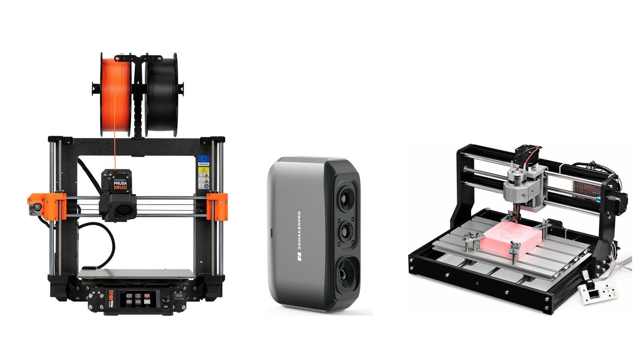
Digital fabrication means making physical objects directly from a digital design, using computer-controlled machines. You design (or scan) something on a computer, and a machine such as a 3D printer, CNC router or laser cutter turns that file into a real part. That's the whole idea. The rest of this guide covers how the main tools work, which one suits which job, and how to get started sensibly at home, in a school D&T department or in a small workshop.
What does "digital fabrication" actually mean?
Traditionally, making something meant measuring, marking and cutting by hand. Digital fabrication swaps the hand-guided steps for a file and a machine. The workflow usually looks like this:
- Design or capture: draw a model in CAD (computer-aided design) software, download one, or capture a real object with a 3D scanner.
- Prepare: software converts the model into machine instructions. For 3D printers this is called slicing; for CNC and lasers it's usually called CAM (computer-aided manufacture) or toolpath generation.
- Make: the machine follows those instructions to build or cut the part.
- Refine: test it, tweak the file and make it again. Because the design is digital, version two is just an edit away.
That last point is the real superpower. Repeating, sharing and improving a design costs almost nothing, which is why these tools are so popular with hobbyists, schools and businesses that prototype products.
Additive vs subtractive manufacturing, in plain words
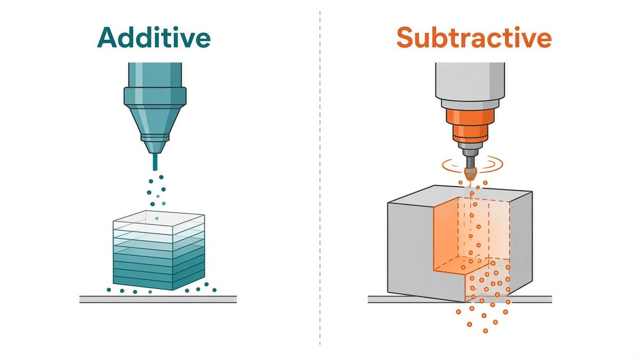
Almost every digital fabrication tool falls into one of two camps:
- Additive: the machine adds material, layer by layer, until the object exists. 3D printing is additive.
- Subtractive: the machine starts with a solid block or sheet and removes material until only your part is left. CNC routers and laser cutters are subtractive.
3D printing vs CNC: the quick comparison
| 3D printing (additive) | CNC routing (subtractive) | |
|---|---|---|
| Starts with | Spool of filament or a vat of resin | Block or sheet of wood, plastic, aluminium etc. |
| Great at | Complex, hollow or organic shapes; one-offs | Flat parts, signs, engraving, real wood and metal |
| Waste | Little (supports, failed prints) | Chips and offcuts |
| Mess and noise | Quiet-ish, tidy | Noisy and dusty; needs extraction |
| Learning curve | Gentle with modern printers | Steeper: tooling, feeds and workholding |
Neither is "better". Many makers end up with both, because they solve different problems.
3D printing: FDM vs resin
FDM (filament) printers
FDM (fused deposition modelling) printers melt a plastic filament and draw your object one thin layer at a time. They're the most common type of home and classroom printer because they're clean, relatively affordable to run and print useful materials such as PLA, PETG and tougher engineering plastics.
Modern printers have taken much of the fiddle out of it. The Prusa CORE One+ (Gen 2), for example, is a fully enclosed printer with a 250 × 220 × 270 mm build volume and automatic calibration. It starts from £919 at Fabinity. The enclosure helps with materials that dislike draughts and keeps curious hands away from hot parts, which matters in a classroom. If you'd rather have an open-frame machine, the Original Prusa MK4S (250 × 210 × 220 mm) starts from £649.
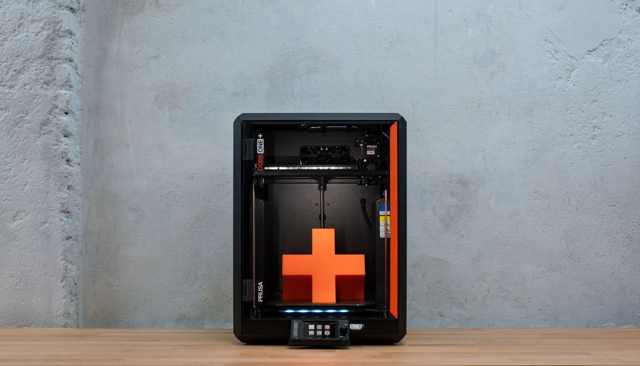
Not sure which? We've compared them in CORE One vs MK4S, and covered whether to build it yourself in kit vs assembled.
Good first filaments: PLA is the easy starting point; PETG is tougher and handles a bit more heat. Browse PLA and PETG.
Resin (SLA/MSLA) printers
Resin printers cure liquid photopolymer with light, producing very fine detail: think miniatures, jewellery masters and dental-style models. The trade-off is handling. Uncured resin needs gloves, good ventilation and a washing and curing step afterwards, so it's less suited to a busy shared space without supervision.
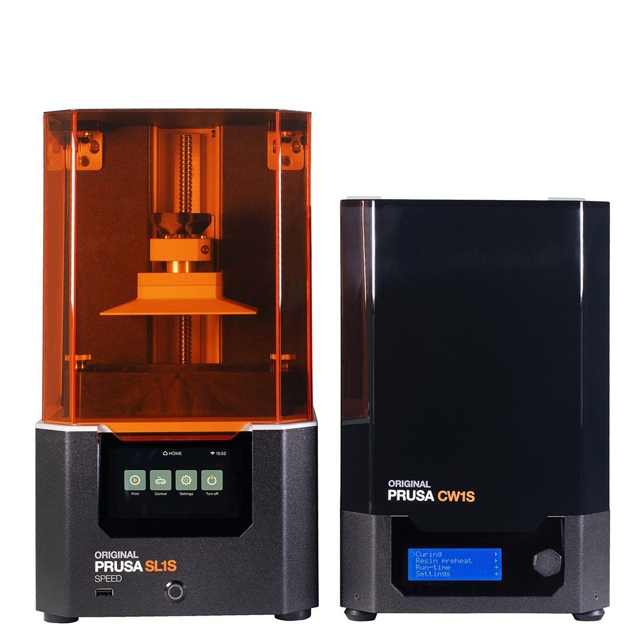
The Original Prusa SL1S SPEED comes bundled with the CW1S wash-and-cure unit and has a 127 × 80 × 150 mm build volume. That's much smaller than an FDM printer, but the detail is in a different league. See resins.
3D scanning and scan-to-print
A 3D scanner captures the shape of a real object and turns it into a digital mesh. That opens up a few genuinely useful workflows:
- Replacement parts: scan a broken bracket or knob, repair the model, print a new one.
- Fit-around designs: scan an awkward shape (a handlebar, a tool, a hand) and design a holder that fits it exactly.
- Heritage and art: capture sculptures or museum objects for study and reproduction.
- Reverse engineering for small businesses.
Be realistic: a scan is a starting point, not a finished CAD model. Shiny, black or transparent surfaces are tricky for most scanners. You'll usually clean up the mesh before printing.
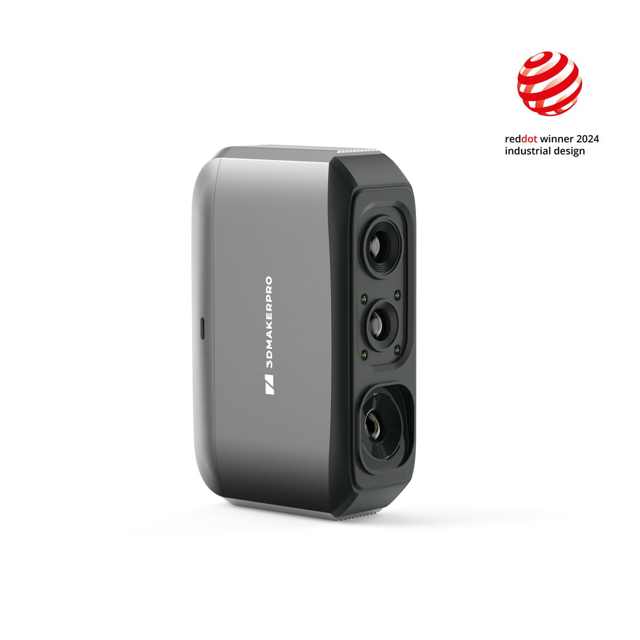
For beginners, the 3DMakerpro Moose Lite is the entry point in our range. The 3DMakerpro Seal is built for smaller, detailed objects, and its product page lists accuracy of 0.01 mm and resolution of 0.05 mm. Compare the full range in 3D scanners.
CNC routers and laser engravers
Desktop CNC routers
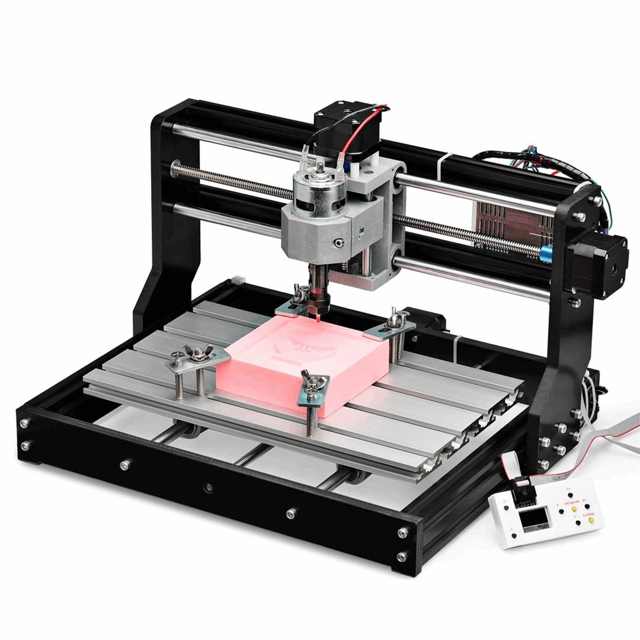
A CNC router moves a spinning cutter along X, Y and Z axes to carve, engrave or cut out parts. Desktop machines handle wood, plastics, acrylic and PCB, and some can do soft metals such as aluminium with care. They're brilliant for signs, inlays, enclosures, jigs and anything where you want real wood or a flat, strong part.
The Genmitsu 3018-PRO DIY kit is a popular way in. It has a 300 × 180 × 45 mm work area and costs £145 at Fabinity. Building it teaches you how the machine works, which helps a lot when you start troubleshooting. For bigger work, see the rest of our CNC machines and CNC tooling.
Honest caveats: CNC is louder and messier than 3D printing. You'll need dust extraction or at least a vacuum, eye protection, and a solid way to clamp your workpiece. Read up on feeds and speeds before your first cut.
Laser engravers and cutters
Lasers use a focused beam to engrave or cut sheet materials such as wood, card, leather and (with the right laser type) acrylic. They're fast and precise for flat work such as personalised gifts, signage and packaging prototypes. They also produce smoke and fumes and carry fire and eye risks, so they need proper extraction, ventilation and supervision. The UK Health and Safety Executive's guidance on local exhaust ventilation is a sensible starting point.
At the professional end, the SainSmart OneLaser Hydra 9 Gen2 is a CO2/RF hybrid laser for business workshops rather than kitchen tables. Browse laser engravers for the full range.
Which tool for which project?
| You want to make… | Best fit | Why |
|---|---|---|
| Brackets, clips, organisers, replacement parts | FDM 3D printer | Strong enough, cheap to iterate |
| Miniatures, jewellery masters, fine detail | Resin printer | Very fine surface detail |
| Copy or fit around an existing object | 3D scanner + printer | Captures real-world shapes |
| Wooden signs, inlays, engraved plaques | CNC router | Real wood, crisp carved detail |
| Flat cut parts, engraving, personalised gifts | Laser | Fast, precise 2D work |
| Aluminium or brass parts | Sturdier CNC router | Needs rigidity and the right tooling |
| Product prototypes for a small business | FDM printer first, then add scanning or CNC | Fastest design-test loop |
If you only buy one machine, a reliable FDM printer covers the widest range of beginner projects.
Costs and space: home, school and workshop
We won't pretend there's one answer, but here's what to plan for beyond the price of the machine.
At home
- Space: a sturdy table or shelf, away from bedrooms if you print overnight. Enclosed printers help with noise, dust and pets.
- Running costs: filament, the odd nozzle and print sheet. A spool of Prusament PLA is from £20.99 at Fabinity.
- Ventilation: sensible for any printing, and essential for resin and lasers.
At school (D&T departments)
Digital fabrication sits naturally in the curriculum. The national curriculum for design and technology in England asks Key Stage 2 pupils to communicate ideas using "prototypes… and computer-aided design". At Key Stage 3, it asks pupils to "select from and use specialist tools, techniques, processes, equipment and machinery precisely, including computer-aided manufacture" and to "investigate new and emerging technologies".
Practical points for departments:
- Enclosed FDM printers are the easiest first purchase for a classroom.
- Scanners link nicely to "investigate and analyse existing products".
- CNC and lasers need risk assessments, extraction and staff training. Follow your school's and CLEAPSS/DATA guidance.
- Think about filament budgets per pupil and how you'll queue jobs.
See our business & education page for school and trade orders.
In a small business workshop
In-house prototyping can shorten the loop between idea and test part from weeks to hours. Consider a larger-format or multi-material printer (large-format, multi-material), a scanner for reverse engineering, and a laser or CNC for fixtures and packaging. Factor in warranty, spares and support; see our warranty and repairs pages.
Where to start
- Pick one real project you want to make. It's the best way to choose a tool.
- Start with free files. Printables has a huge library of free models to print before you design your own.
- Learn basic CAD. Free and education-licensed options such as Tinkercad are great for beginners and pupils.
- Buy for reliability, not headline specs. A machine that works every evening beats one that's faster on paper.
- Grow from there. Add a scanner or CNC once you know what you want to make.
Still undecided? Our Help me choose quiz asks five quick questions and matches you to a printer from our range.
Frequently asked questions
What is digital fabrication in simple terms?
It's making physical objects from a digital file using computer-controlled machines such as 3D printers, CNC routers and laser cutters.
What's the difference between 3D printing and CNC?
3D printing is additive: it builds objects up layer by layer. CNC is subtractive: it cuts material away from a solid block. 3D printing suits complex shapes and quick prototypes; CNC suits real wood, flat parts and metals.
Is 3D printing good for beginners?
Yes. Modern FDM printers with automatic calibration, like the Prusa CORE One+, are designed to print well out of the box. Start with PLA and free models from Printables.
Is digital fabrication part of the UK D&T curriculum?
In England, the national curriculum for design and technology includes computer-aided design and, at Key Stage 3, computer-aided manufacture and investigating new and emerging technologies.
Do I need a 3D scanner to start?
No. Most people start with a printer and free or self-designed models. A scanner becomes useful when you want to copy or fit around real objects.